Connect myenergi zappi with ChargeDoc
Track your charging costs with the myenergi zappi automatically: cloud connection via hub serial number and API key, one charge per plug-in with the solar share reported by myenergi, older charges from the myenergi export. Beta.
| Models | Zappi V2, Zappi V1 |
| Integration | Cloud API |
| Authentication | HTTP Digest (Hub-Serial + API-Key) |
| Max. Power | 7.4/11/22 kW |
| Phases | 3-phase |
| Market | UK / DACH |
| API Quality | Experimental |
| Status | Available |
myenergi zappi – the charger for solar households
The myenergi zappi is not an ordinary wallbox. It was built from the start to work with rooftop PV and home batteries. In ECO and ECO+ mode the zappi charges your car preferentially from surplus solar energy — in ECO+ it even pauses when there is not enough sun.
That is exactly what makes the cost side interesting: if a large part of your charging comes from your own roof, your real charging costs are far below the grid rate. But for employer reimbursement and tax returns only what you can evidence counts — and that takes numbers, not estimates.
Beta: The myenergi integration is new and currently running with beta customers. If anything doesn't work as expected, we'd appreciate a quick note to support.
What ChargeDoc records
The app polls the myenergi cloud in the background roughly every 15 minutes, plus whenever you open it. For each zappi it remembers the plug-in cycle: when you plugged in and when you unplugged again.
After you unplug, ChargeDoc fetches the minute data for that period from the myenergi cloud and combines it into one charging session — even if the zappi paused in between. Documented per session:
- Energy charged in kWh
- Start and end time (first and last minute with energy)
- Solar share, as reported by myenergi
- Electricity costs based on your configured rate
- Current charging power in the live status while charging
If the myenergi cloud still delivers no minute data for a finished charge two hours after unplugging, ChargeDoc books the charge from the zappi's energy value — with the observed plug-in time as start, then without a solar share. Very small energy blocks up to 0.1 kWh are not booked.
The automatic history reaches back 7 days. If the app did not observe the plug-in — for example because it was not opened for a long time and background refresh is off — a charge with long pauses can appear as several entries. For earlier periods, the myenergi export is the reliable source.
The connection is read-only: ChargeDoc does not control your zappi and changes no settings.
ECO, ECO+ and Fast
The zappi offers three charging modes — and it is worth knowing what of that is visible in the app:
- ChargeDoc records the total energy per plug-in cycle regardless of mode. The app does not read the selected charging mode.
- The solar share of a charge is part of the booking, as myenergi reports it.
- Waiting for sun is not a fault: while the zappi waits for solar surplus, the app does not warn about an unusually long wait. "Charging started" arrives once per charge, even if the zappi pauses and resumes several times.
In practice: an ECO+ charge on a sunny day appears in your reports with its green share — a Fast charge overnight appears entirely as grid energy.
Setting up step by step
1. Get your hub serial number and API key
You need two things: the serial number of your myenergi hub (not the zappi's) and an API key. Create the key in your myenergi account at myaccount.myenergi.com or in the myenergi app under Menu → Location → myenergi products → key icon next to the hub.
2. Add the wallbox
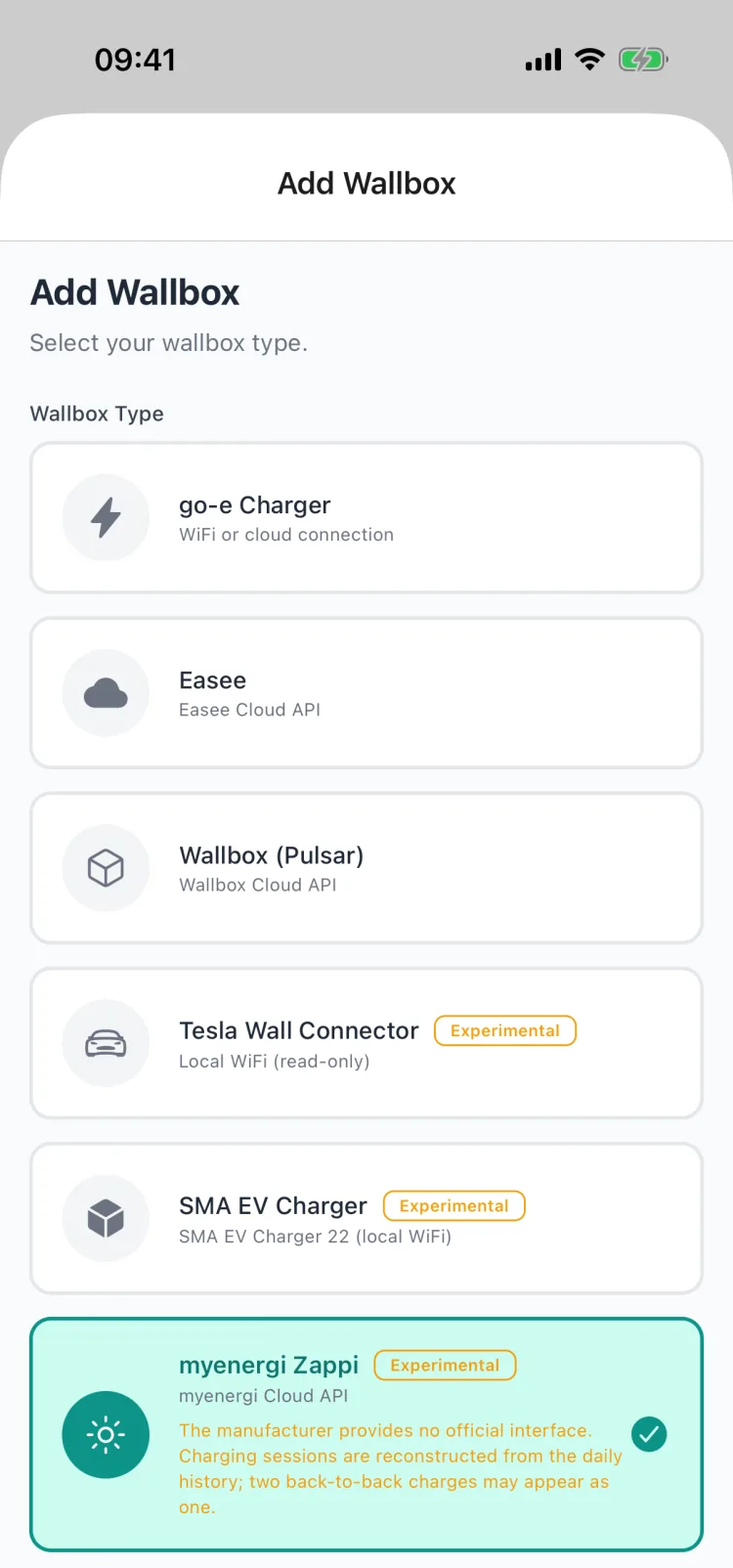
Open More → My Wallboxes → Add Wallbox and select "myenergi Zappi". Enter the hub serial number and API key, then pick a location, default vehicle and maximum power.
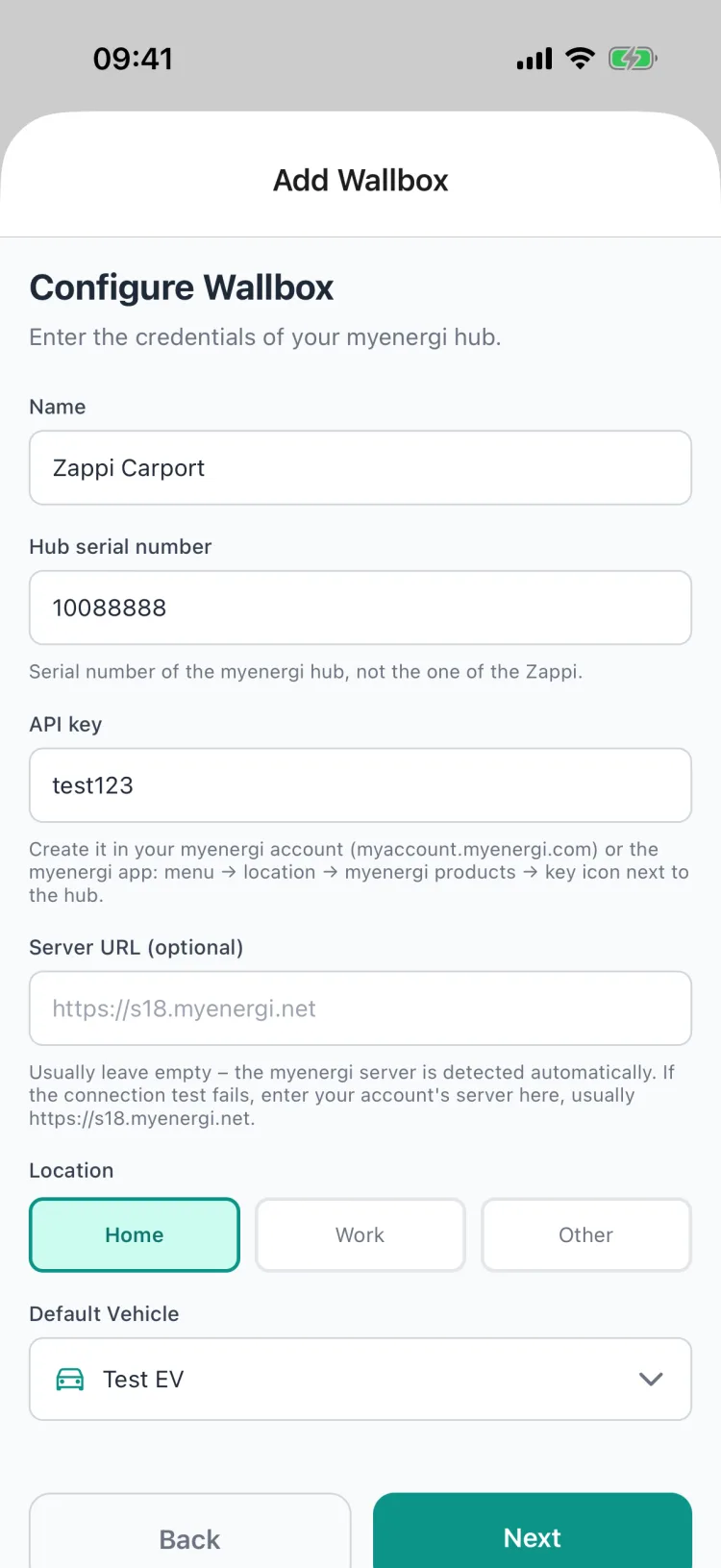
| Field | Example | Meaning |
|---|---|---|
| Name | Carport zappi | free to choose |
| Hub serial number | 12345678 | serial of the myenergi hub |
| API key | ••••••• | from your myenergi account or app |
| Server URL (optional) | empty | only needed if the test fails |
| Maximum power | 7.4 kW | rated power of your zappi (7.4, 11 or 22 kW), for display and plausibility only — nothing changes on the zappi |
3. Test the connection and save
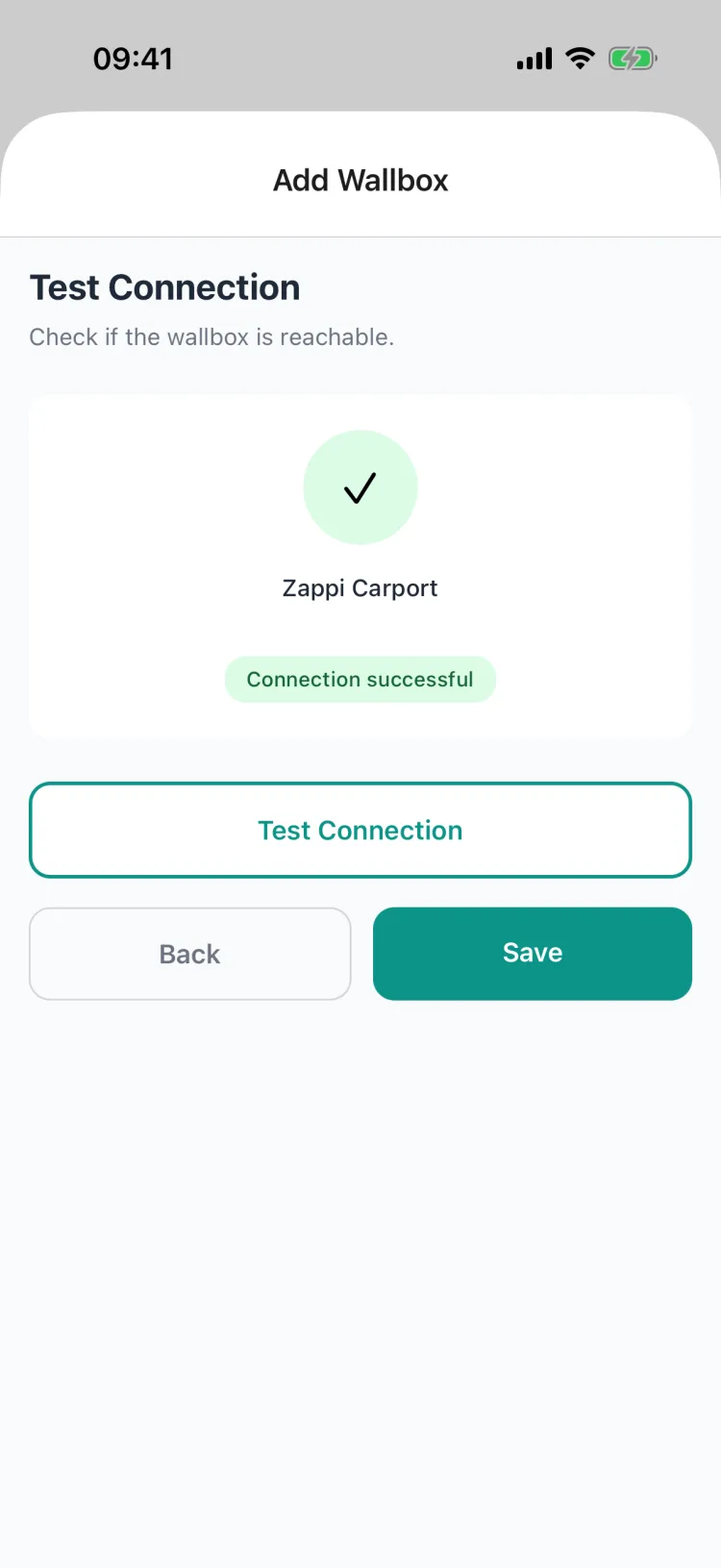
Tap "Test connection". If it succeeds, tap Save. If it fails, enter your myenergi account's server in the "Server URL (optional)" field — usually https://s18.myenergi.net — and test again. Normally the app determines the server by itself and the field stays empty.
4. Done: live status
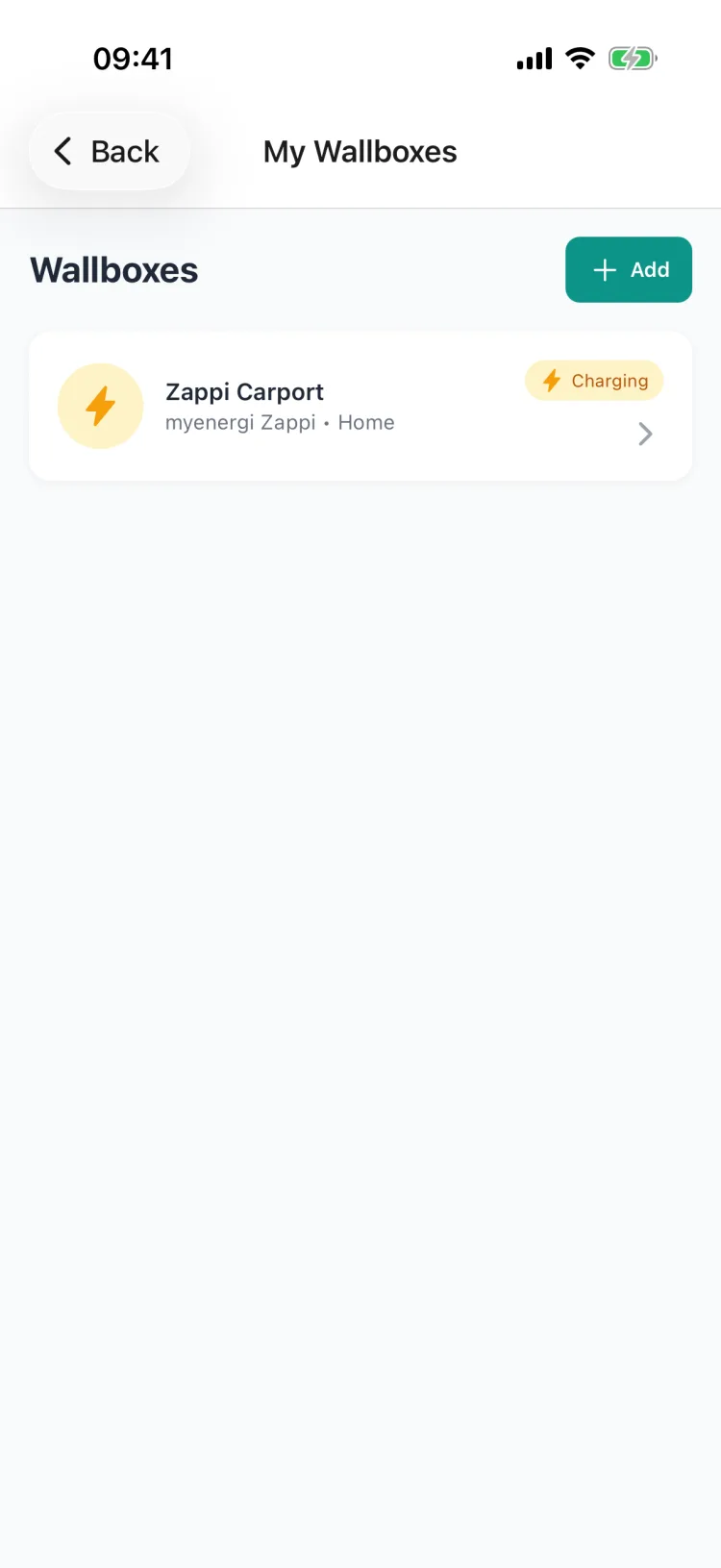
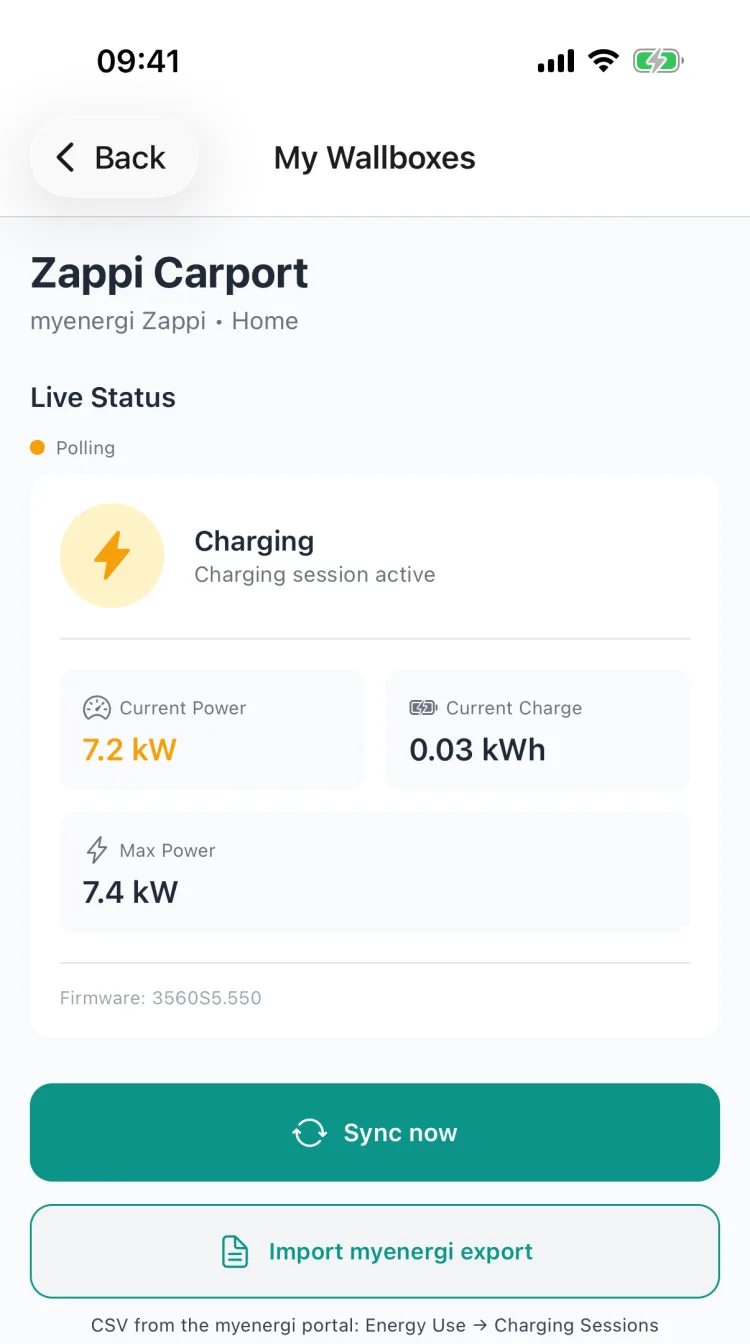
The wallbox now appears in your list — with the status "Charging" while a session is running.
Tap it to open the live status with current charging power, energy charged so far, and maximum power — this is also where the "Sync now" and "Import myenergi export" buttons sit. "Server source" shows how the app determined the myenergi server: default, remembered, found by the director, or set manually.
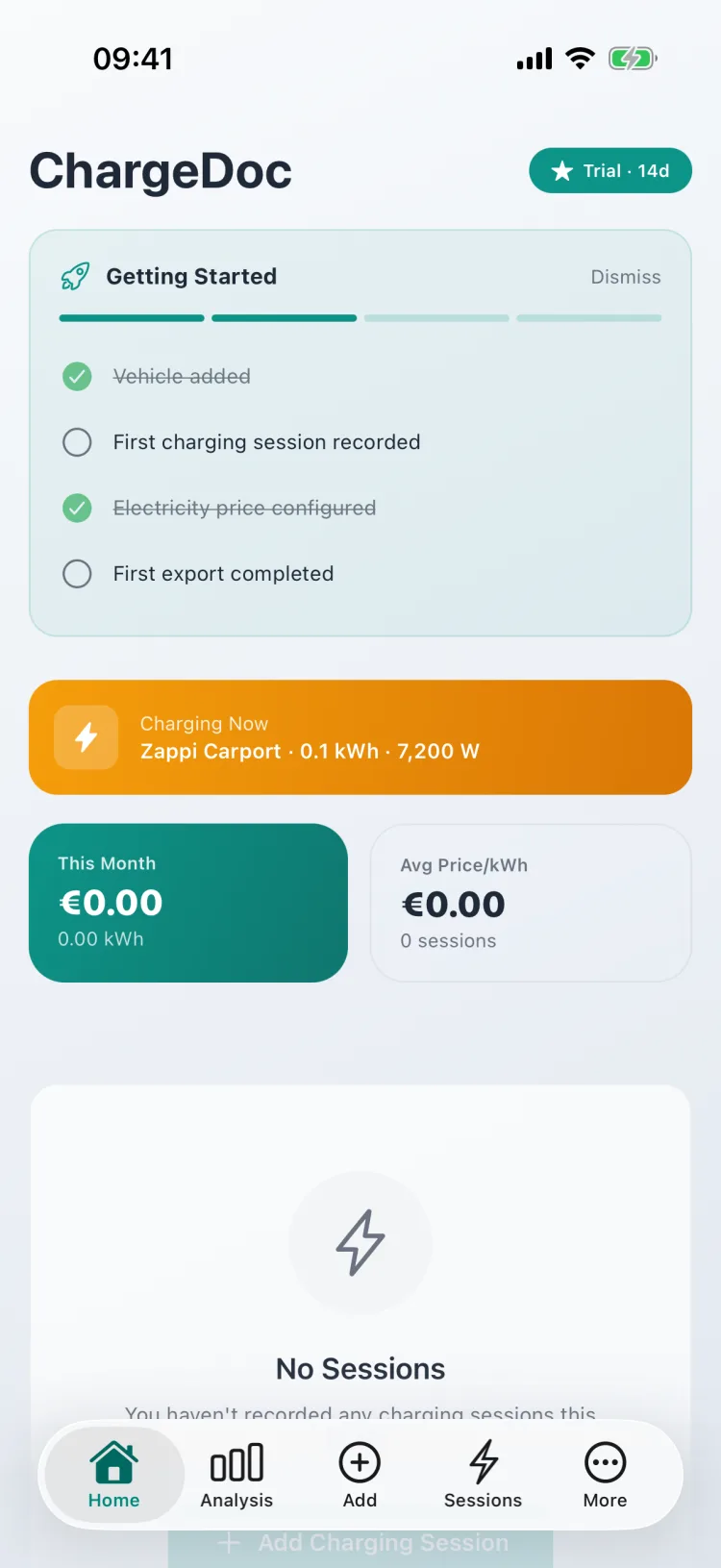
While a charge is running, the home screen shows a live banner with the wallbox and its current power.
5. Add older charges
To record charges older than 7 days, download the CSV export from the myenergi portal and import it via "Import myenergi export" on the zappi detail screen.
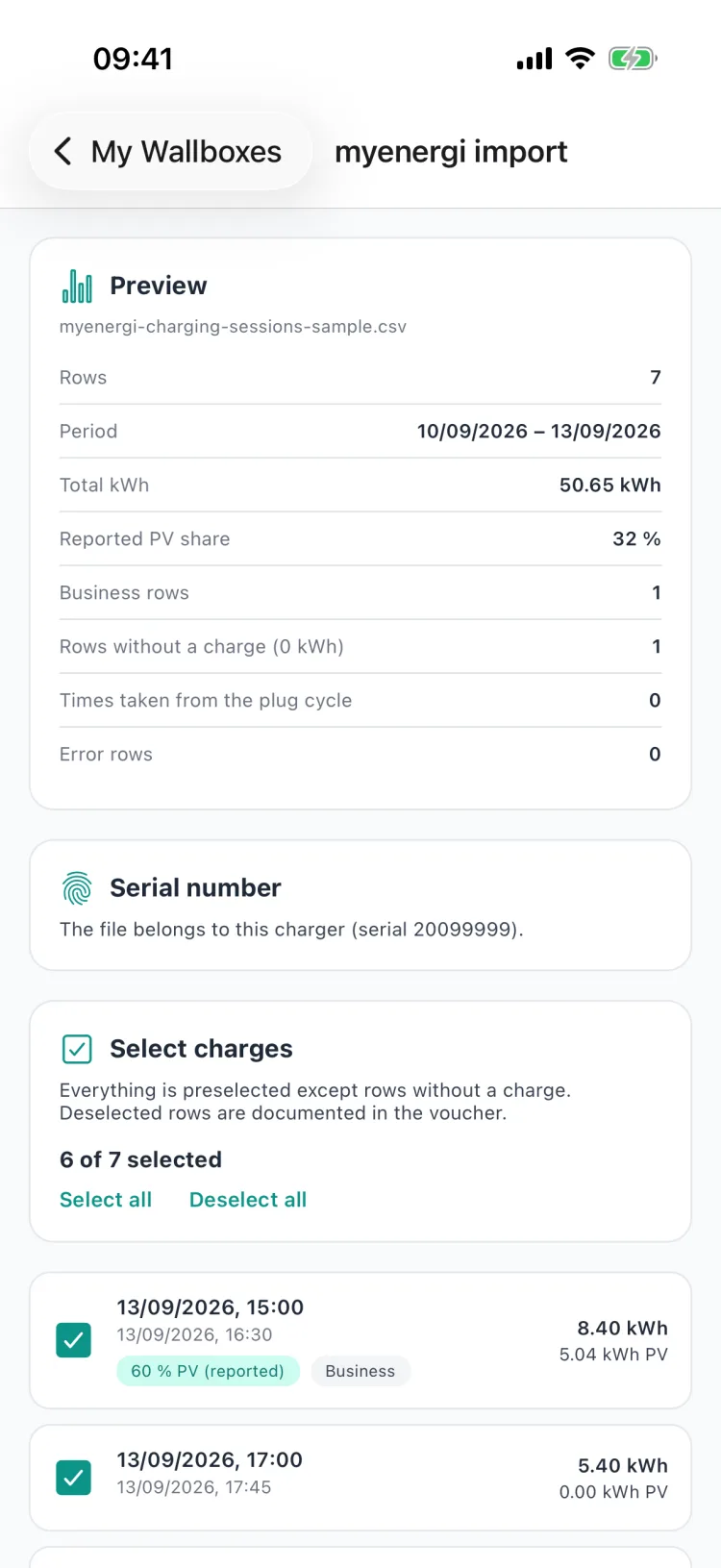
Before you save, the preview shows what the file contains: row count and period, total kWh, the solar share myenergi reports, how many rows are marked as business, and whether the serial number matches this wallbox. Every charge with energy is pre-selected — you can deselect individual rows before importing.
Documentation for tax purposes
With the zappi, ChargeDoc also creates tax-ready records:
- PDF reports for your employer
- DATEV export for your tax advisor
- CSV export of all charges for your own spreadsheets
- Audit-proof records with audit log
- Monthly summaries with costs and energy amounts
Imported sessions are stored as locked records and the import is written to the audit log — so it stays traceable where every row came from.
For company-car reimbursement in Germany, the metered amount is what counts: solar power from your own roof may be valued at your supplier's household tariff or at the electricity price flat rate (BMF letter of 11 Nov 2025, paras. 29 and 30). For your own cost picture, the solar share shows what a charge actually cost you.
Conclusion
Enter the hub serial number and API key once — from then on ChargeDoc records every charge of your myenergi zappi automatically as one session per plug-in, from anywhere, without a shared Wi-Fi, with the solar share myenergi itself reports. Older charges are added from the myenergi export. The integration is in beta, and feedback from real-world use is expressly welcome.
How to set it up
Get your hub serial number and API key
You need the serial number of your myenergi hub (not the zappi) and an API key. Create the key in your myenergi account at myaccount.myenergi.com or in the myenergi app under Menu → Location → myenergi products → key icon next to the hub.
Add the wallbox in ChargeDoc
Open More → My Wallboxes → Add Wallbox, select "myenergi Zappi", enter the hub serial number and API key, pick the maximum power (7.4, 11 or 22 kW), then tap "Test connection". Leave "Server URL (optional)" empty in most cases — only if the test fails, enter your account's server there, usually https://s18.myenergi.net. Then save.
Record charging sessions automatically
ChargeDoc polls the myenergi cloud in the background roughly every 15 minutes and remembers when you plug in and unplug. After you unplug, the app combines the minute data of that plug-in cycle into one charging session: energy in kWh, start and end time, the solar share reported by myenergi, and the cost from your electricity price.
Add older charges from the myenergi export
The automatic history reaches back 7 days. For older charges, download the CSV in the myenergi portal under Energy Use → Charging Sessions → Export, then tap "Import myenergi export" on the zappi detail screen. ChargeDoc shows a preview, detects duplicates, and takes over the green energy myenergi reports for each charge.
Frequently Asked Questions
Does ChargeDoc separate solar energy from grid energy?
Yes, as myenergi reports it. The myenergi cloud's minute data contains, per minute, the energy from solar surplus and the energy from the grid. ChargeDoc adds both up per plug-in cycle and labels the solar share as "reported (myenergi)" — not as measured. Only if the minute data for a finished charge is still missing two hours after unplugging does the app book the charge from the zappi's energy value, then without a solar share. The grid share is priced with your electricity rate, the solar share with the optional "Own solar (PV)" price from the price settings.
Which zappi models are supported?
Any zappi connected to a myenergi hub with internet access. The connection runs through the myenergi cloud API, not through the charger itself. You set the maximum power to 7.4, 11 or 22 kW. The integration has been tested with a zappi V2 and is currently in beta.
Does this work outside the UK, for example in Germany or Austria?
Yes. The myenergi cloud API works regardless of location as long as your hub is online. ChargeDoc determines the right myenergi server automatically and shows in the wallbox detail where it came from. Only if the connection test fails do you enter your account's server in the "Server URL (optional)" field — usually https://s18.myenergi.net.
Is an ECO+ charge with pauses split into several entries?
No, as long as the app observed the plug-in: all energy blocks between plugging in and unplugging are combined into one charge. If the app did not see the plug-in — for example because it was not opened for a long time and background refresh is off — a charge with long pauses can appear as several entries. The app sends "Charging started" only once per charge, even if the zappi pauses in between.
What does beta mean for this integration?
The zappi integration is new and currently running with beta customers. The automatic history reaches back 7 days; for anything older, the myenergi export is the source. We welcome feedback via support.
Does my phone need to be on the same Wi-Fi as the zappi?
No. The connection runs through the myenergi cloud, not your home network. Your myenergi hub simply has to be online — your charging data arrives even when you are away from home.
Does ChargeDoc control my zappi?
No. The connection is read-only. ChargeDoc never starts or stops a charge, never switches charging mode, and never changes any setting on your charger.
Do I need a Pro subscription?
Automatic wallbox sync and the myenergi import are Pro features. Both are included in the free trial, so you can try the zappi integration first.
Start tracking charging costs now
Try ChargeDoc free for 14 days and track your charging costs automatically.